Falcon Prompter Gateway
Setup and operation guide
Falcon Prompter Gateway (FMG) connects published Falcon Rundown content to a prompter application on the same Windows computer. WinPlus-IP or CueScript connects only to localhost; FMG retrieves newsroom data from Falcon Cloud over HTTPS.
mos.gateway.wearefalcon.tv. No inbound firewall rule, VPN tunnel or public MOS port is required. The local MOS client connects to FMG on loopback only.What FMG delivers
- Only rundowns marked Published in the paired Falcon Rundown workspace.
- Run order, story titles, status fields and prompter text.
- Automatic updates when a published rundown or story is changed.
- A local control application with connection state, delivery state, counters and logs.
- A setup guide that displays the exact NCS ID and MOS ID assigned to the computer.
Requirements
- Windows 10 or Windows 11, 64-bit.
- WinPlus-IP or a CueScript application with MOS newsroom support.
- Outbound DNS and HTTPS access to
mos.gateway.wearefalcon.tv. - A Falcon Rundown workspace provisioned for FMG.
- A one-time pairing code supplied by Falcon or generated from the workspace publish settings.
How pairing works
WinPlus-IP and CueScript do not provide a field for a Falcon workspace token. FMG therefore uses a provisioned NCS ID as the stable newsroom identity. On the Falcon server, that NCS ID is mapped to the workspace and to the MOS IDs that are allowed to connect.
- The workspace is enabled for prompter publishing.
- Falcon provisions an NCS ID and one or more permitted MOS IDs.
- The FMG installer exchanges the one-time pairing code for a device token.
- The device token is stored in Windows Credential Manager, not in the WinPlus or CueScript configuration.
- FMG uses that token for outbound HTTPS requests and exposes the assigned MOS identity locally.
Install Falcon Prompter Gateway
- Copy or mount the Falcon Prompter Gateway installer on the prompter computer.
- Run
Install-FMG.cmdas Administrator. - Enter the one-time pairing code when prompted.
- Wait for the installer self-test and runtime verification to complete.
- Open Falcon Prompter Gateway from the desktop or Start menu.
- In Settings, enable Always start on startup if the gateway should launch automatically after Windows sign-in.
Update-FMG.cmd for an upgrade. It replaces the engine and desktop application while preserving pairing, configuration and the latest cached newsroom snapshot.Understand the Overview screen
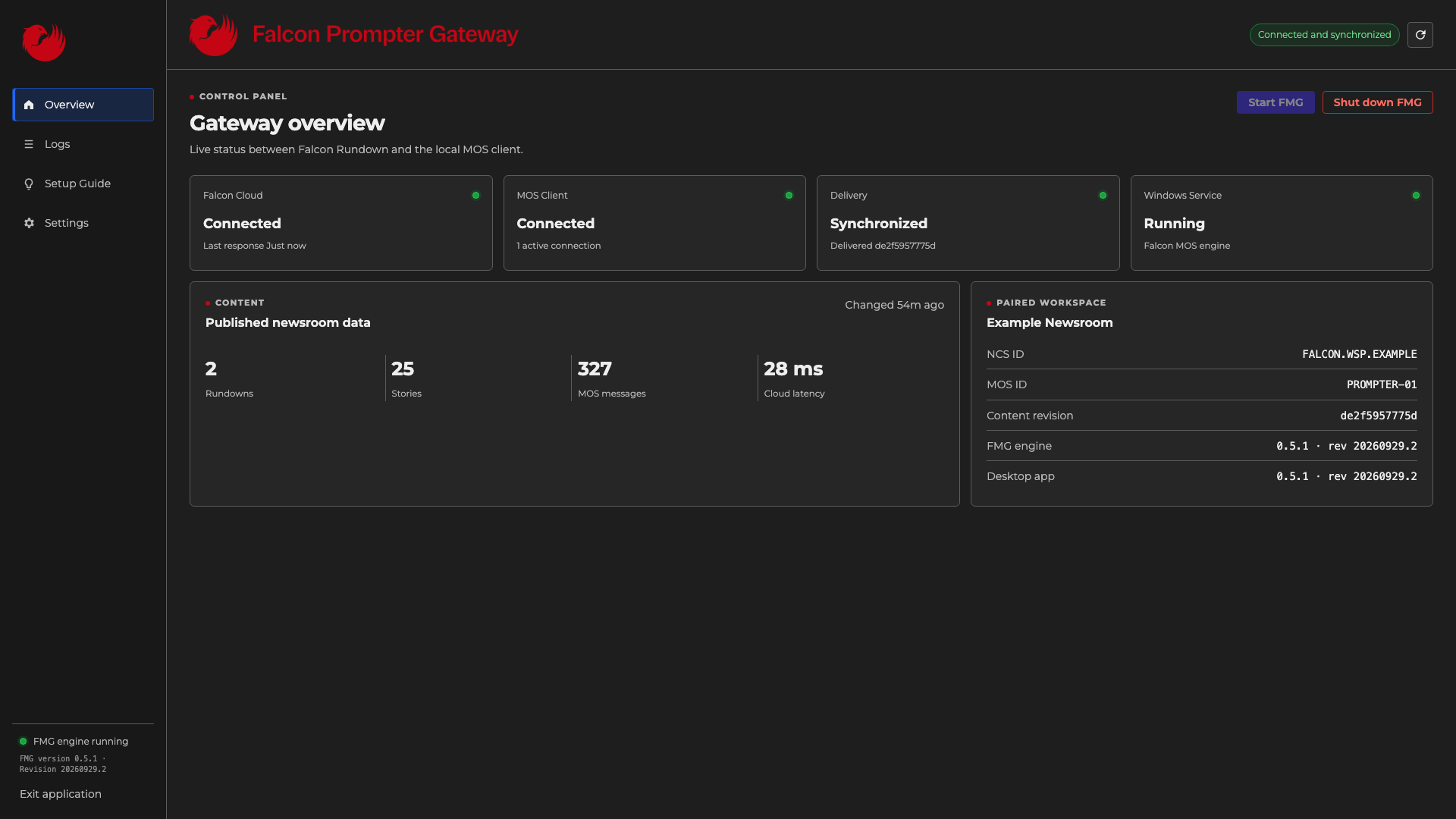
| Card | Healthy state | Meaning |
|---|---|---|
| Falcon Cloud | Connected | FMG can authenticate and retrieve the latest published workspace snapshot. |
| MOS Client | Connected | WinPlus-IP or CueScript has recently sent valid MOS traffic to FMG. |
| Delivery | Synchronized | The current cloud revision has been acknowledged by the local MOS client. |
| Windows Service | Running | The background FMG engine and local MOS listeners are active. |
Connect WinPlus-IP
Open Setup Guide in FMG and copy the values displayed for the paired computer. Do not copy example identifiers from this documentation.
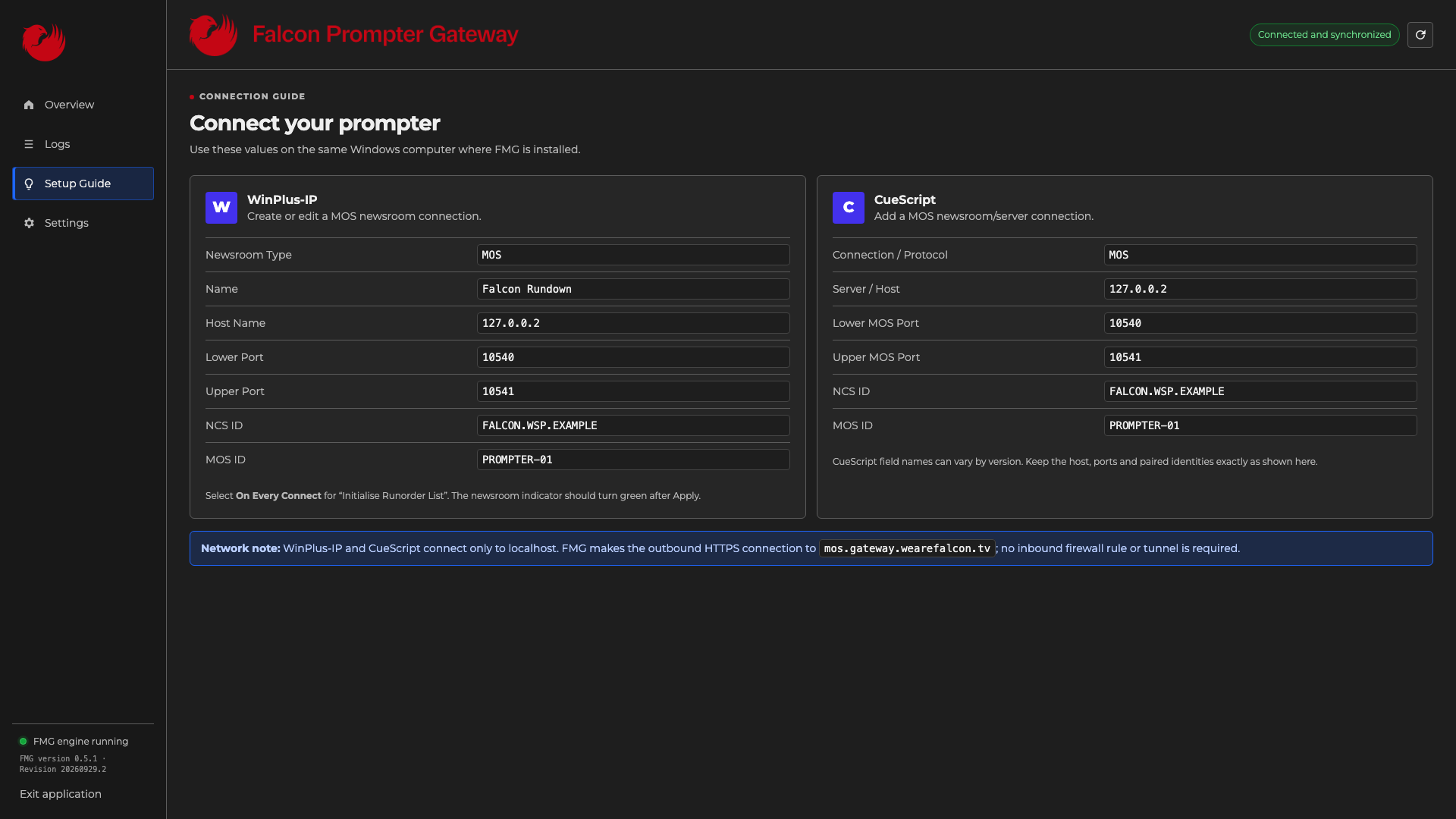
| WinPlus-IP field | Value |
|---|---|
| Newsroom Type | MOS |
| Name | A descriptive name, for example Falcon Rundown |
| Host Name | 127.0.0.2 |
| Lower Port | 10540 |
| Upper Port | 10541 |
| NCS ID | Copy the NCS ID shown in FMG |
| MOS ID | Copy the MOS ID shown in FMG |
| Initialise Runorder List | On Every Connect |
- In WinPlus-IP, open the Newsrooms panel and add or edit a newsroom.
- Select MOS and enter the values above.
- Select Host Name, not IP Address, and enter
127.0.0.2. - Click Apply.
- Wait for the newsroom indicator to turn green.
- Open the Available Run Orders window and select a published rundown.
Connect CueScript
CueScript field names differ between versions, but the values are the same:
| CueScript field | Value |
|---|---|
| Connection / Protocol | MOS |
| Server / Host | 127.0.0.2 |
| Lower MOS Port | 10540 |
| Upper MOS Port | 10541 |
| NCS ID | Copy the NCS ID shown in FMG |
| MOS ID | Copy the MOS ID shown in FMG |
Publish and update rundowns
- Open the rundown in Falcon Rundown.
- Enable the Published flag.
- FMG retrieves the updated workspace snapshot automatically.
- The local engine sends the new or changed run order to the MOS client.
- Delivery changes to Synchronized after the MOS acknowledgement is received.
Changes to story titles, order and prompter text are delivered automatically while the rundown remains published. Unpublishing a rundown removes it from the available newsroom list.
Settings and startup
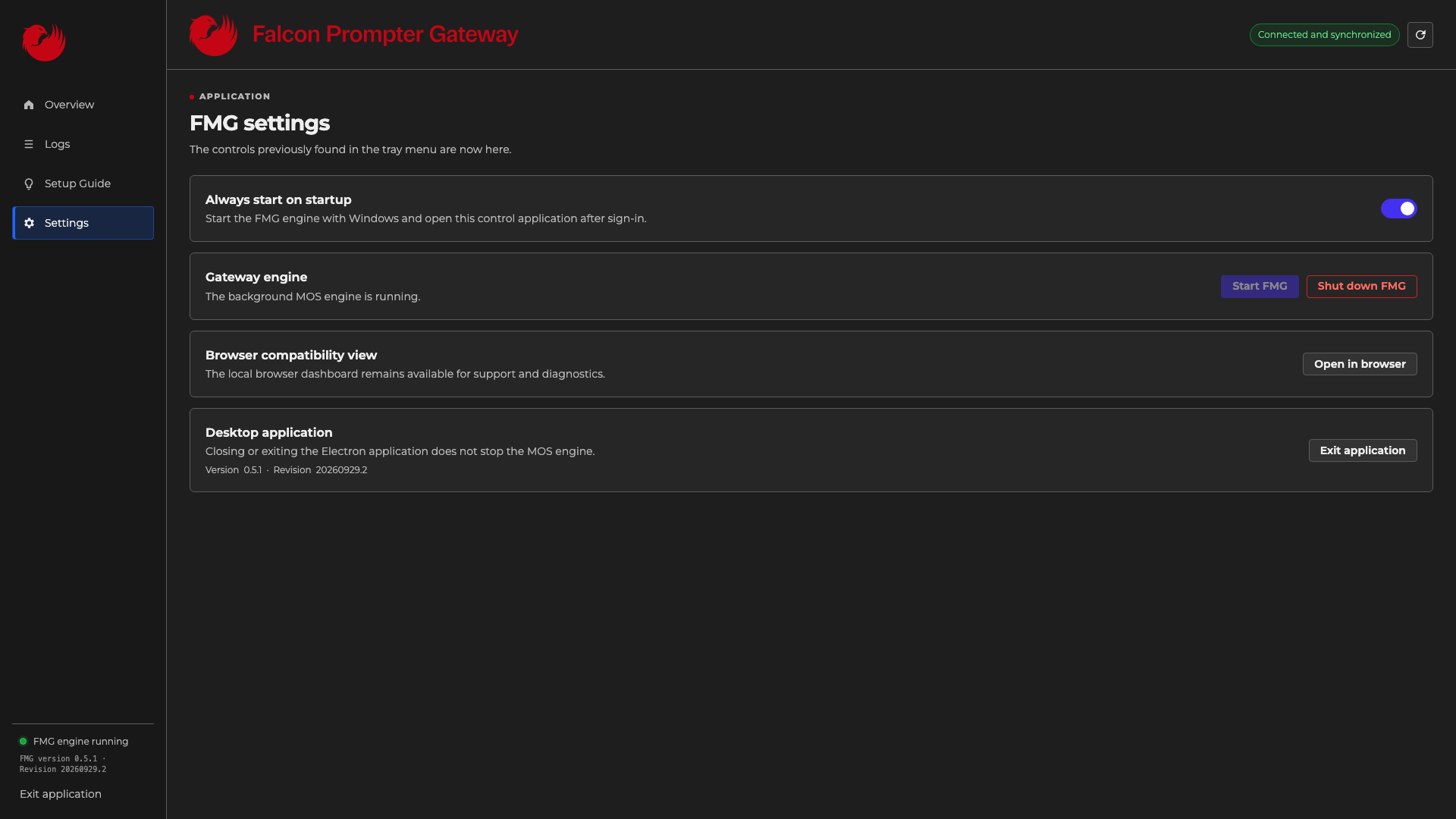
- Always start on startup starts the FMG engine with Windows and opens the control application after sign-in.
- Start FMG starts the background MOS engine.
- Shut down FMG stops the engine and disconnects local MOS clients.
- Open in browser opens the local compatibility dashboard at
http://127.0.0.1:11542/. - Exit application closes only the Electron control window; it does not stop the engine.
Logs and diagnostics
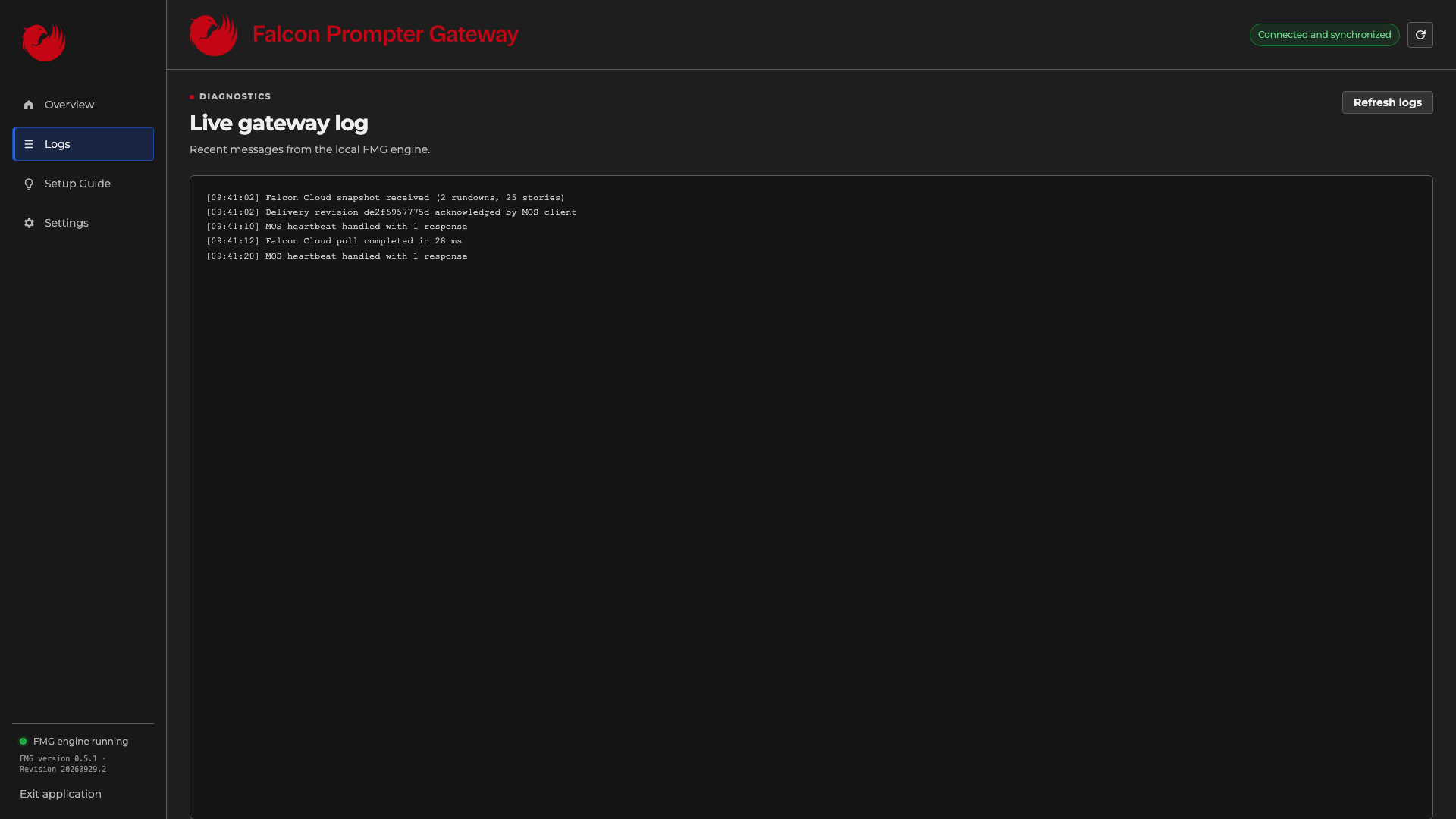
Use the Logs tab when a status card is not green. Useful entries include cloud snapshot downloads, MOS heartbeat responses, delivery acknowledgements and connection errors.
Troubleshooting
| Symptom | Checks |
|---|---|
| Falcon Cloud is Offline | Check DNS, outbound HTTPS, Windows date and time, and access to mos.gateway.wearefalcon.tv. |
| MOS Client is Waiting for client | Confirm WinPlus-IP or CueScript is open. Verify host 127.0.0.2, ports 10540/10541, and the exact NCS and MOS IDs from FMG. |
| Newsroom is green but no rundowns are listed | Confirm the rundown is Published, then refresh Available Run Orders or reconnect the newsroom. Confirm the correct workspace NCS ID is in use. |
| Delivery remains Pending | Confirm the prompter callback listener is available on 127.0.0.1:10541. Restart the newsroom connection and use Force-Resync-FMG.cmd if required. |
| Titles arrive but prompter text is empty | Confirm the story contains text in the Falcon Rundown prompter field and that both FMG components show the same current version and revision. |
| A recent story edit is not visible | Check that FMG downloaded a new content revision and reached Synchronized, then reload the active run order in the prompter application. |
Security and local data
- The device token is stored in Windows Credential Manager.
- The last valid published snapshot is cached under
%ProgramData%\Falcon\FMG. - MOS listeners bind to loopback addresses and are not intended for remote access.
- FMG requires outbound HTTPS only; never expose ports 10540 or 10541 to the internet.
Support checklist
When contacting Falcon support, include:
- FMG version and revision from Settings.
- The state of all four Overview cards.
- The paired project name, NCS ID and MOS ID.
- The relevant log lines and the time the issue occurred.
- Whether the problem affects WinPlus-IP, CueScript or both.