Falcon Media Gateway: overview and setup
Connect your local media library to Falcon Rundown. See clip availability, preview existing proxy videos and use HTML graphics with editable variables through one Asset Package.
Guide revision 1 · 30 September 2026 · Screenshots: macOS, Falcon Media Gateway 0.2.0, revision 5, and Falcon Rundown Developer.
What the gateway does
Falcon Media Gateway runs on a computer that can read your video, proxy and graphics folders. It publishes existing video assets and HTML graphics to a Falcon Rundown Asset Package using the same publishing flow as Falcon Play. It also checks files for video placeholders created in Rundown and reports Offline, Pending or Online.
Journalists and producers can use those assets in stories, see their availability and preview media through MediaProxy without direct access to your local storage.
The gateway does not upload a video archive to MediaProxy or MinIO. Existing proxy video is streamed on demand. Thumbnails and supported HTML graphics resources can be cached in MinIO. The gateway does not create or transcode proxy videos.
Before you start
- Use a computer with read access to the media folders. Network storage must be mounted and available to the account running the app.
- Have an Asset Package in the correct Falcon Rundown environment. Its owner configures the gateway connection. Workspaces must use that package to access its media and Clip Status settings.
- Provide browser-compatible proxy files if you need video previews. Proxy generation belongs to your existing media workflow.
- Allow outbound HTTPS and secure WebSocket connections on port 443 to the Falcon services, including
mediaproxy.wearefalcon.tv. No inbound connection to the local computer is required.
Build availability: this guide uses the Mac Apple Silicon test build. The current Mac build is ad-hoc signed and not notarized. Windows and Ubuntu use the same application source but still require native build and acceptance testing before customer rollout. Confirm the platform build and matching Rundown deployment with the Falcon team; the screenshots show the Developer environment.
On the Mac, extract the supplied package, copy Falcon Media Gateway.app to Applications and open it. Keep the app running, the computer awake and the media storage connected while media should be available.
1. Connect an Asset Package
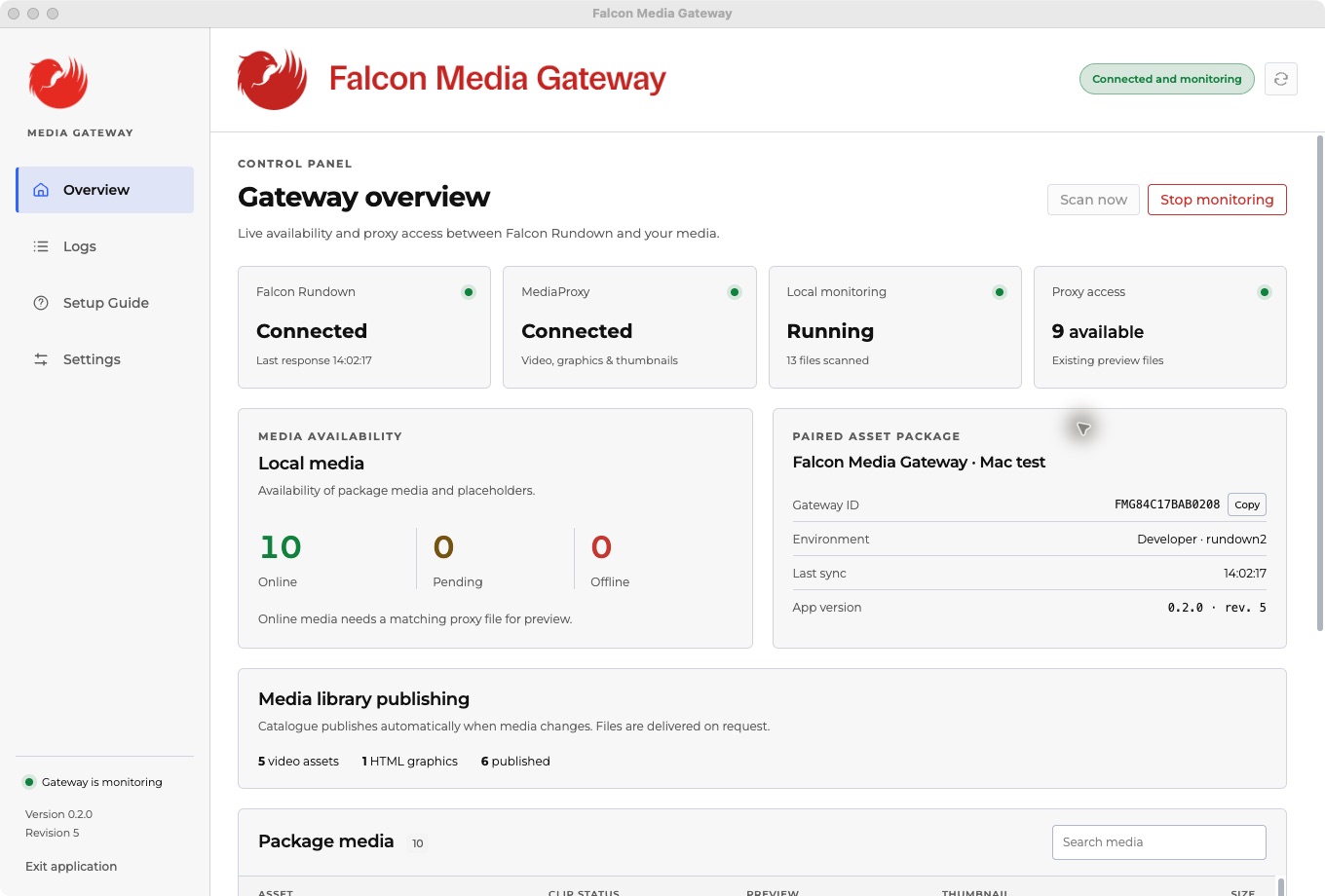
- Open the gateway's Overview page and copy its Gateway ID. It starts with
FMG. - In Falcon Rundown, open Asset Manager. Select an existing Asset Package, or use + to create and name one.
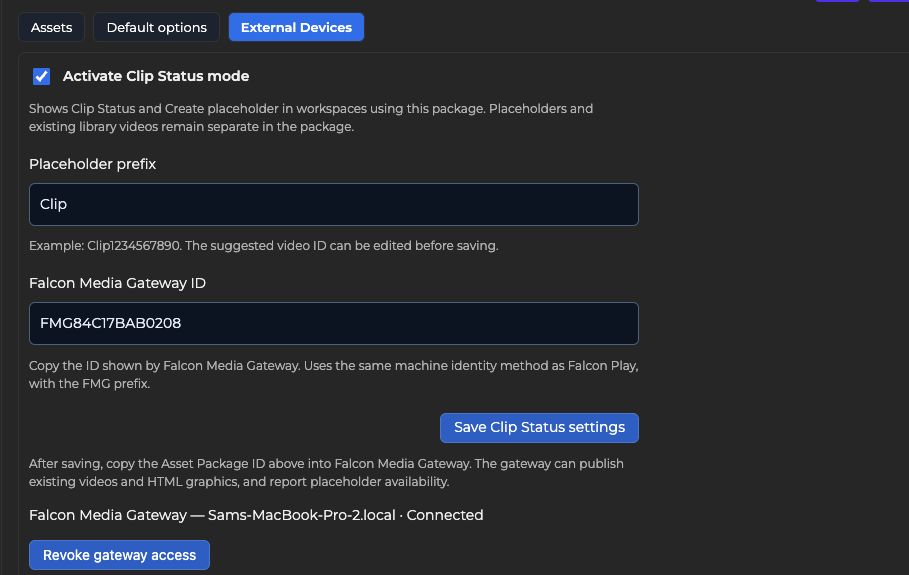
- Select External Devices and find the Falcon Media Gateway section.
- Enable Activate Clip Status mode. Set the Placeholder prefix; the default is
Clip. - Paste the ID from the gateway into Falcon Media Gateway ID, then select Save Clip Status settings.
- Copy the Asset Package ID shown above the gateway settings.
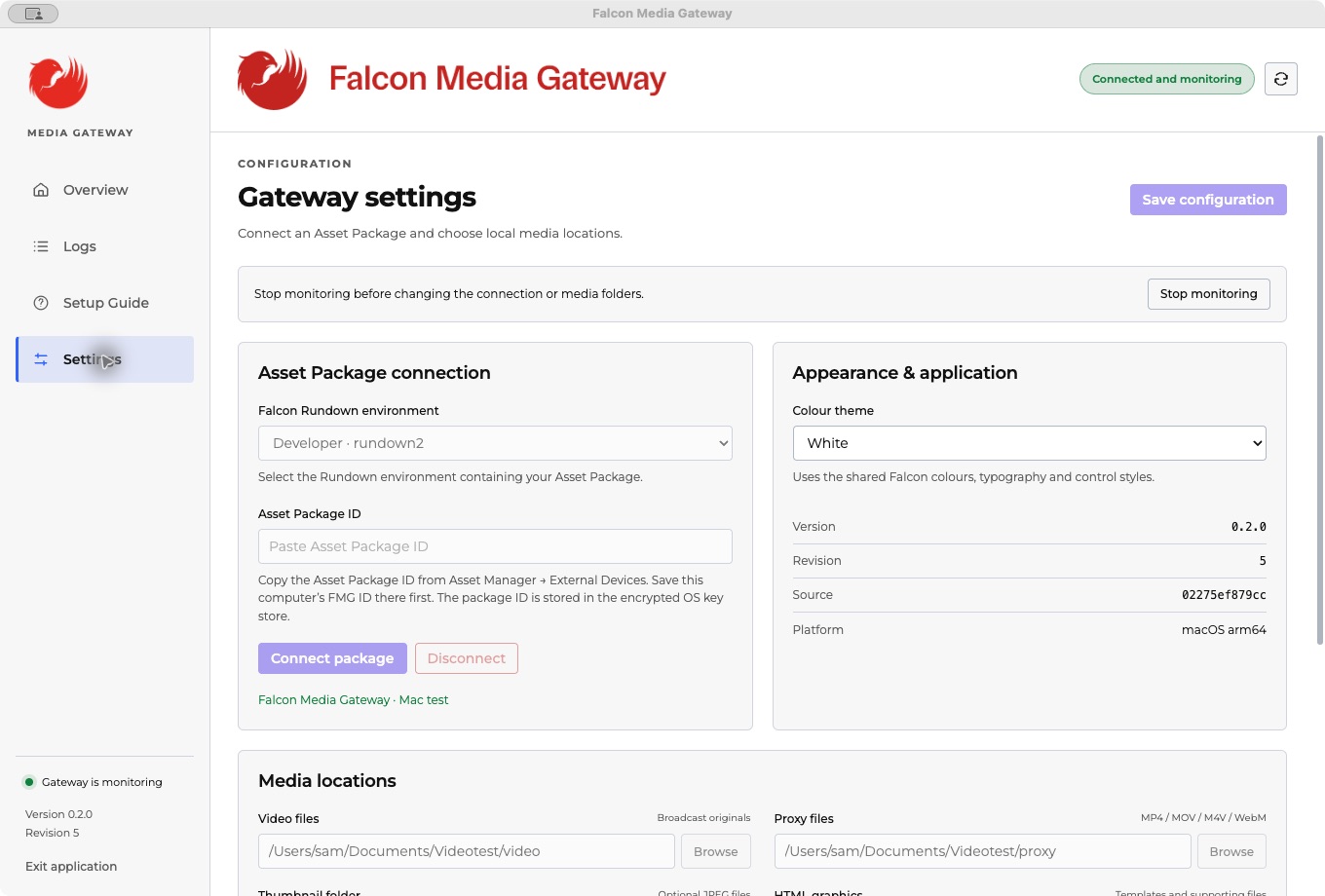
- In the gateway, open Settings. Choose the Falcon Rundown environment containing the package.
- Paste the Asset Package ID into Asset Package connection and select Connect package. Check that the expected package name appears.
- In Rundown, select this Asset Package for each workspace that should use the library.
Two different IDs: the Gateway ID identifies the computer. It uses the same machine identity method as Falcon Play, with the FMG prefix. The Asset Package ID authorizes access to the package; keep it private. The app stores connection credentials in the operating system's encrypted storage.
One gateway connects to one Asset Package. Connecting again replaces the package's previous device connection. Workspaces using that package share its media and Clip Status configuration.
2. Choose your media folders
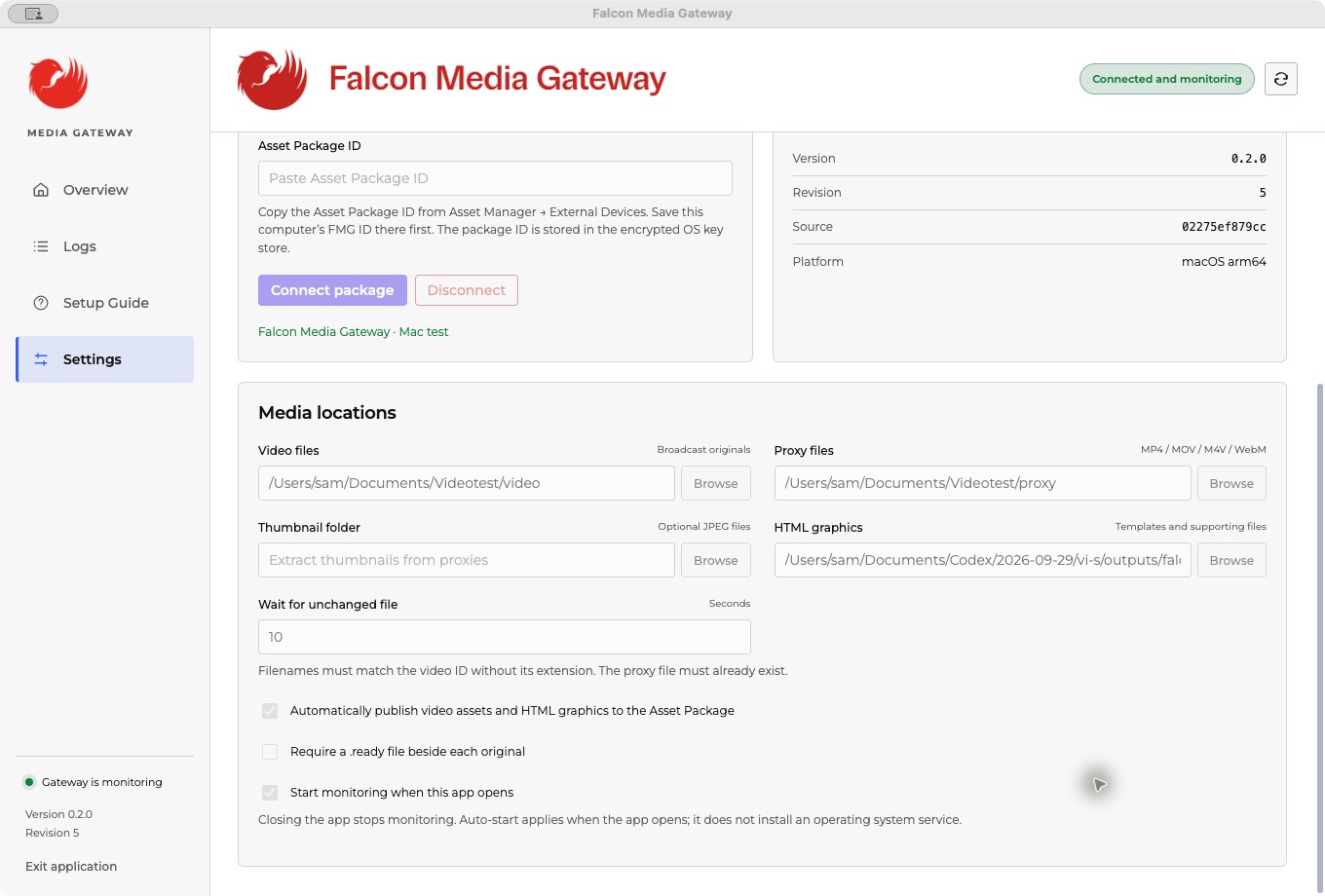
If monitoring is already running, select Stop monitoring before changing the connection or folders. Under Settings → Media locations, use Browse to choose:
- Video files: the folder containing broadcast originals. Subfolders are scanned too.
- Proxy files: existing MP4, MOV, M4V or WebM previews with browser-compatible codecs.
- Thumbnail folder: optional JPEG thumbnails. Leave it empty to extract a JPEG frame from each available proxy.
- HTML graphics: optional HTML templates and their supporting files.
Enable Automatically publish video assets and HTML graphics to the Asset Package to make the existing library available in Rundown without creating placeholders first.
Wait for unchanged file controls how long an original must remain unchanged before it can be reported Online. The default is 10 seconds. If your producing system writes completion markers, enable Require a .ready file beside each original and create a marker such as Clip1234567890.mxf.ready only after the original is complete.
Select Save configuration, then return to Overview and select Start monitoring.
How filenames are matched
A placeholder uses its video ID as the filename without an extension. For example:
| Item | Example |
|---|---|
| Placeholder video ID | Clip1234567890 |
| Original in Video files | Clip1234567890.mxf |
| Proxy in Proxy files | Clip1234567890.mp4 |
| Optional thumbnail | Clip1234567890.jpg |
Placeholder IDs accept letters, numbers, underscores and hyphens, start with a letter or number, and do not include the extension. Matching is case-insensitive. Avoid duplicate placeholder basenames in different subfolders: an ambiguous match cannot be reported Online.
Automatically published library videos retain their relative filenames and can contain spaces and Unicode characters. For these assets, a proxy in the matching relative subfolder takes priority; a unique basename is used as a fallback.
3. Check monitoring and Clip Status
On Overview, confirm that Falcon Rundown and MediaProxy are Connected and Local monitoring is Running. Check the library publishing counts and Package media list. Scan now requests a fresh scan.
- Offline: the original is missing, unreadable or ambiguous, or its folder is unavailable. Rundown also reports Offline after 45 seconds without a fresh gateway report.
- Pending: availability has not yet been confirmed. The file may already exist while stability or readiness checks finish. A changing, partial or empty file, or one awaiting a ready marker, can remain Pending. Pending does not mean an upload to MediaProxy.
- Online: the original is readable and unchanged for the configured interval, with a ready marker when that option is enabled.
Online describes original-file availability. It does not guarantee that a matching proxy exists, that a codec plays in the browser or that the original is ready for broadcast. A stability interval is a filesystem check; a paused copy can look stable. Use a completion marker if your media system can supply one.
In Rundown, the Clip Status column is available when the workspace's Asset Package has Clip Status mode enabled. A story containing several clips shows a count such as 1/2 online when only some are Online. Select the status to inspect the individual clips and open an available proxy.
4. Use videos and placeholders in stories
Existing video assets are published from the Video files folder automatically when library publishing is enabled. Placeholders reserve a video ID for a planned clip, even before its file exists. They remain separate entries in the package.
In Asset Manager → Assets → VIDEO, use the Show filter to choose All videos and placeholders, Videos or Placeholders. Select Refresh assets after the gateway publishes new media.
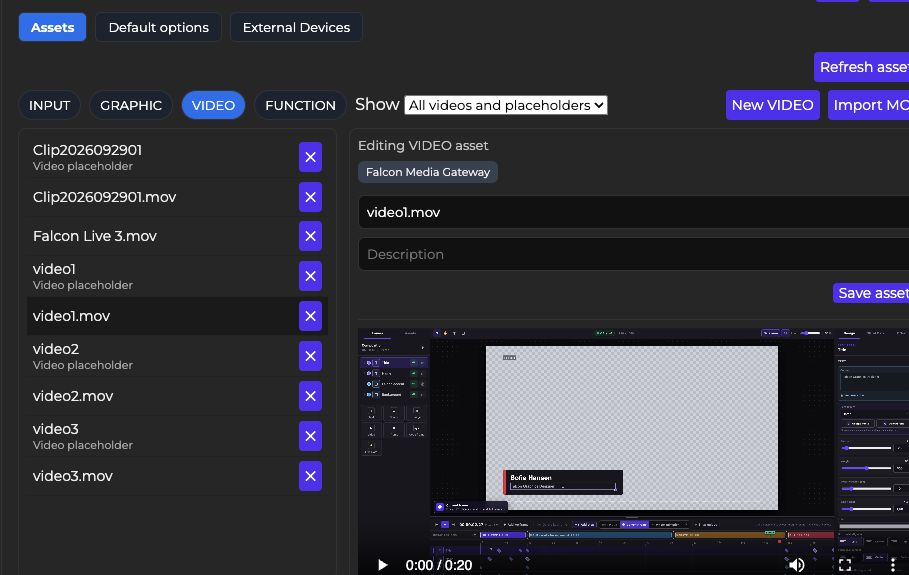
To use an existing video, insert a VIDEO item in a story and choose Add Asset. To reserve a new clip:
- Open the story for editing and insert a VIDEO item.
- Select the item and choose Create placeholder.
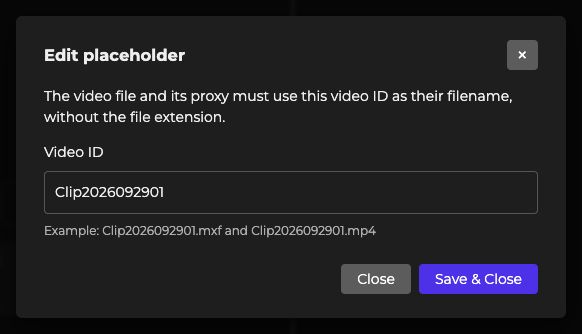
- Review the suggested prefix plus ten random digits. Edit the Video ID if needed.
- Select Save & Close to create it. Close dismisses the dialog without saving.
- Deliver the original and proxy to their configured folders using the same video ID.
For an existing placeholder, Edit placeholder changes the video ID. Edit Asset opens the asset and available proxy preview. Changing the ID changes which filenames the gateway searches for.
Video items show a thumbnail when available and an Online, Pending or Offline badge. Hover over the small thumbnail for a larger image. These item displays refresh while the story window is open and its editor is inactive; updates pause while you are actively editing.

5. Publish HTML graphics with variables
- Place the HTML templates and their CSS, JavaScript, images and fonts inside the configured HTML graphics folder.
- Enable automatic library publishing and start monitoring.
- In Rundown, select Asset Manager → Assets → GRAPHIC, then Refresh assets.
- Select the published template to inspect its variables and Graphics preview. Use Update preview to apply the editor values to the preview.
- Add the GRAPHIC asset to a story and fill in the values required for that story.
The gateway uses Falcon Play's supported variable conventions: embedded GDD properties, OGRAF fields or legacy text_/img_ element IDs. Template authors must supply a compatible variable definition and update behaviour; arbitrary HTML does not automatically become an editable graphics template.
The HTML file is retrieved from the gateway through MediaProxy. MinIO can cache the original template and supported small resources such as HTML, CSS, JavaScript, images and fonts. Story-specific variable values are applied to the preview; they do not replace the shared cached template.
Streaming and cache behaviour
- Original video: stays on your storage and is checked for availability. The gateway does not stream the broadcast original as a replacement for a proxy.
- Proxy video: stays local and is relayed on demand through MediaProxy. Complete video files are not stored as a MediaProxy or MinIO cache.
- Thumbnails: supplied from matching JPEG files or extracted from existing proxies, then cached in MinIO.
- HTML graphics: source templates and supported small resources can be cached in MinIO. Video and audio resources are streamed instead of cached.
Preview access is authorized and time-limited. Refresh the preview or use Refresh assets if its ticket expires. Cached resources do not make the gateway an offline archive: the connection and current media authorization still matter.
Daily operation
Keep the gateway running while Rundown needs current availability and previews. Start monitoring when this app opens starts monitoring when you launch the app; it does not install a background service or an operating system login task. Quitting the app stops monitoring.
Use Logs for connection and publishing errors. Version and revision are visible in the sidebar and under Settings → Appearance & application. Include both when contacting Falcon support.
Troubleshooting
The package will not connect
Confirm the Rundown environment, Asset Package ID and current FMG Gateway ID. Save the ID under External Devices before connecting. If a network adapter or machine identity changes, the generated ID can change: copy the current ID from Overview, update the package settings and reconnect.
A clip stays Offline or Pending
Check the original folder, filename and read permissions. Remove ambiguous duplicates. For Pending, wait for the stability interval and check that the file has stopped changing. If ready markers are required, confirm that the completed original has its matching .ready file.
A clip is Online but has no proxy or thumbnail
Check the separate Proxy files folder and matching filename or relative path. Confirm that the proxy is readable and uses a browser-compatible codec. A MOV extension alone does not guarantee browser playback. The gateway does not generate a missing proxy. For thumbnails, use a matching JPEG or leave the thumbnail folder empty for extraction from the proxy.
Existing videos or graphics are missing from Asset Manager
Check automatic publishing, the chosen folders and the connected package. Check the publishing counts and Logs, then select Refresh assets in Rundown. Invalid graphics variable definitions can prevent a template from being published.
A graphics preview is blank or blocked
Refresh assets and reopen the template. Check the gateway and MediaProxy connection, template resource paths and browser error details. Confirm that the template and its dependencies are inside the graphics folder. If the browser reports a blocked request, share that error and the app version/revision with Falcon support.
Settings cannot be edited
Select Stop monitoring, make the changes, Save configuration and start monitoring again.